

TLDR:
- A Claude Connector is an integration that lets Claude push and pull data to and from your other apps.
- There are four levels: native connectors (one-click), desktop extensions (your local files), Computer Use (Claude operates your screen), and MCP (the universal protocol that opens the rest of the connector world).
- Most marketers start with native connectors and the desktop extension. Anyone using Apify, Zapier, Klaviyo, or Higgsfield is already using MCP whether they noticed or not.
- Every Connector asks for permissions. Read means Claude can look. Write means Claude can change.
- The four tiers, side by side, are at the bottom of this page.
What You Will Set Up in This Phase
By the end of this part, your Cowork has:
- At least one native Connector authorized for the cloud apps you live in (Notion, Drive, Slack, or Gmail are the most common first three).
- A desktop install so Claude can reach the workspace folder on your machine.
- A clear policy for which Connectors are read-only and which are write-enabled. Start everything read-only.
The Quick Start walks you through the first three Connectors in about fifteen minutes.
This is Phase 4 of theCLICK's setup framework for Claude Cowork, and it is the part where the framework reaches out of the room. Skills are how you teach Claude jobs. Connectors are how an AI agent actually does those jobs against the apps you already work in.
What Is a Claude Connector
Claude on its own is a smart room with no doors. Connectors put the doors in.
Skills call Connectors when the work needs to reach outside Claude. A "weekly newsletter" Skill might call a Drive Connector to pull this week's notes, a Notion Connector to read your content calendar, and a Gmail Connector to find the inbound questions worth answering.
There are four kinds, ranked from easiest to most technical. We will walk each one.
The 4 Levels of Connectors
Claude Connectors come in four levels. They go from one-click easy to genuinely technical.
This four-tier ordering is theCLICK's teaching frame, not an official Anthropic ranking. The product docs treat these as separate features. The ordering here is how marketers actually meet them in practice.
Tier 1. Native connectors. One click. The cloud apps Claude already knows.
Tier 2. Desktop extensions. Claude reaches into your computer.
Tier 3. Computer Use. Claude sees and operates your screen.
Tier 4. MCP. The universal protocol that opens the rest of the connector world.
Most marketers start with native connectors and the desktop extension. Anyone who uses Apify, Zapier, Klaviyo, or any tool whose name shows up in the Cowork marketplace is also using MCP, whether they noticed or not. The next four sections walk each tier with a concrete example.
Native Connectors: One-Click for Cloud Apps
Native connectors install with one click. They are the cloud apps Anthropic has already wired up for Claude.
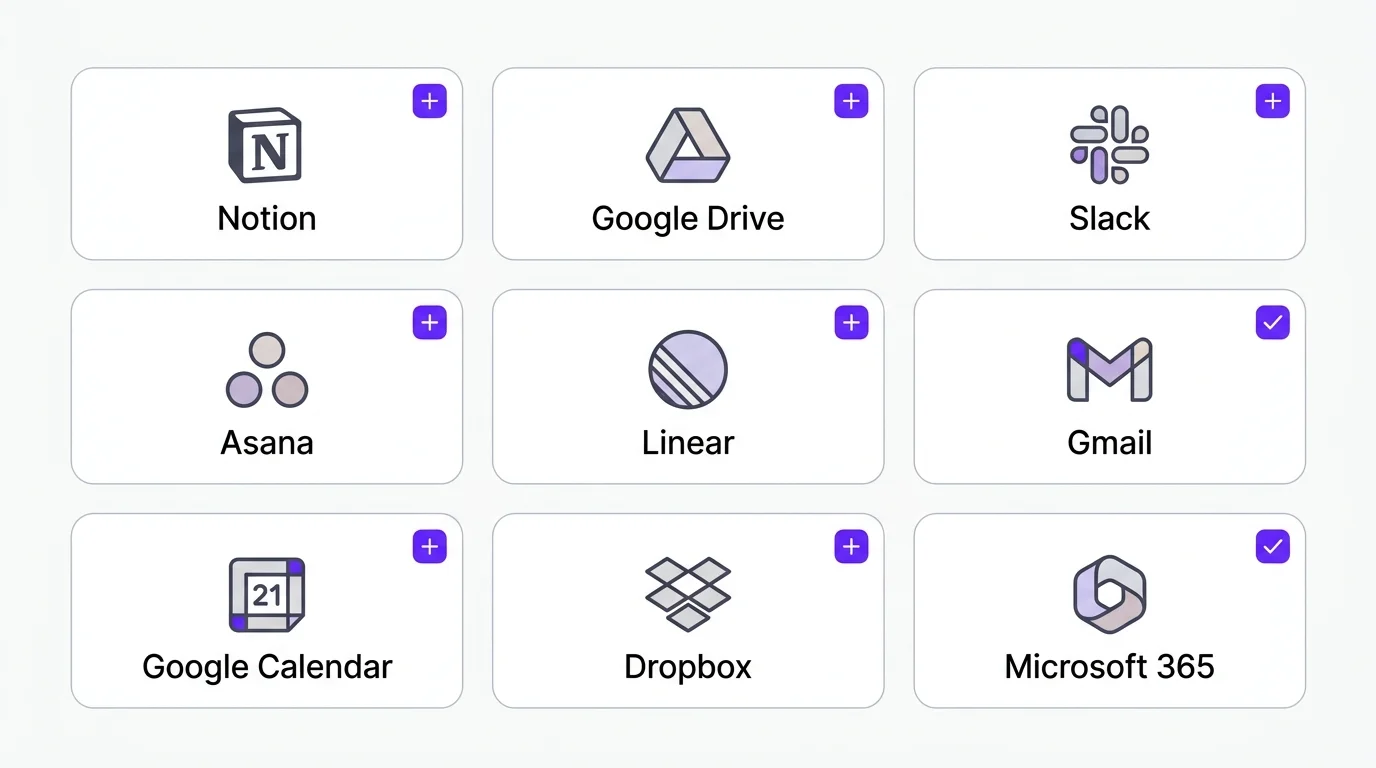
A snapshot of the headline list at time of writing: Notion, Google Drive, Slack, Asana, Linear, Gmail, Google Calendar. The roster grows in waves. Your Cowork settings panel is the canonical source. Check it when something on this list is missing.
The install gesture. Open Claude. Open settings. Open connectors. Pick the one you want. Click connect. Authorize at the cloud-app sign-in screen. Come back. Done.
If you live in the major cloud apps, your first three Connectors will all be native. That is the typical starting point and most operators never need more than this.
Desktop Extensions: Access Your Local Files
Desktop extensions let Claude read and write files on your computer.
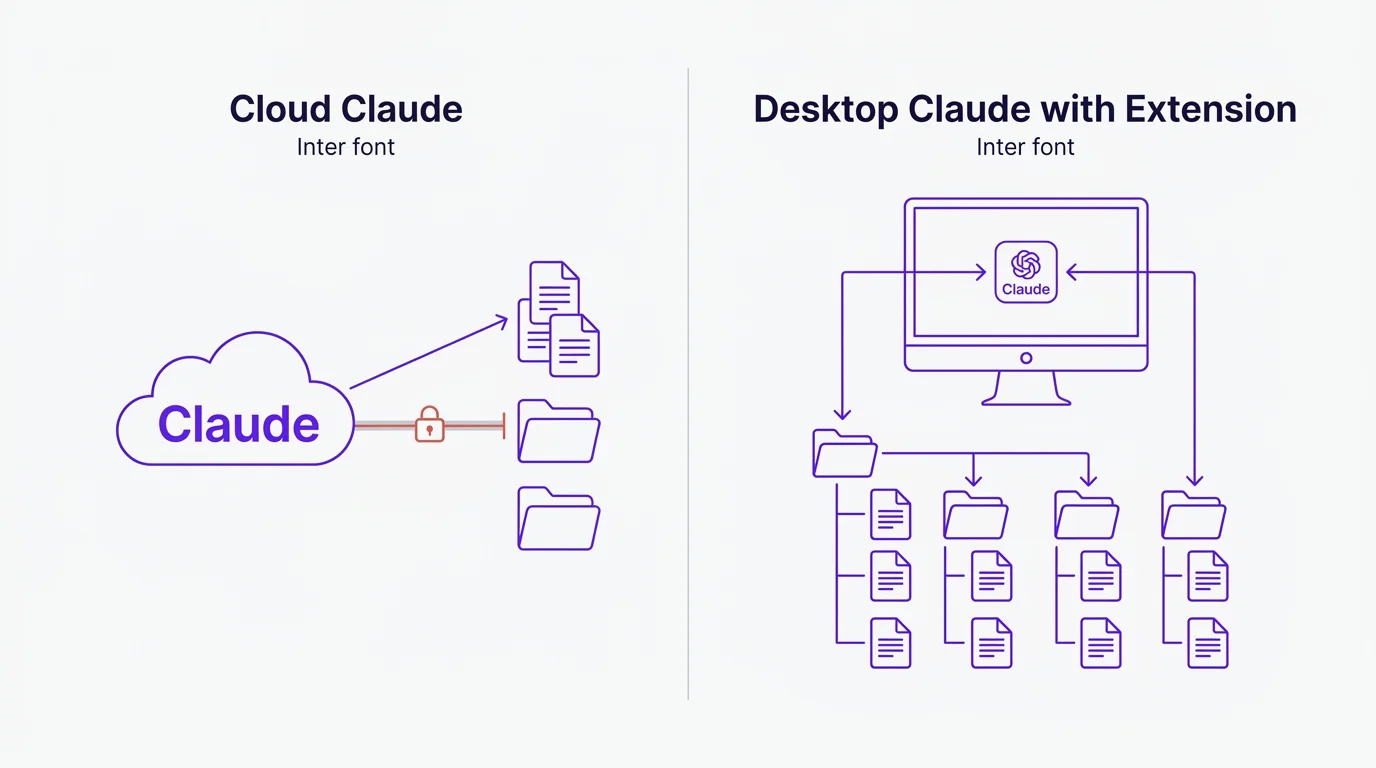
Cloud Claude (the web app at claude.ai) cannot see your hard drive. Desktop Claude can. The desktop extension is what gives the model access to a specific folder on your computer so it can read the brand voice file, edit the draft, save a new version, and pick up where it left off tomorrow.
Concrete example. Claude reads your Brand Voice guide on Google Drive (that is a native connector). Claude reads your local Markdown files via the desktop extension. Same model, two different reach mechanisms.
The framing that works. Claude lives in a folder. The desktop extension is what lets it actually open the folder. If you use Claude Cowork via the desktop app, you have desktop extension access, the feature that gives Claude reach into your local workspace. The Quick Start configures this for you.
For more on how the desktop extension affects what gets loaded into the context window, see the Get Started page.
Computer Use: Claude Sees Your Screen
Computer Use lets Claude see your screen and operate your apps directly. It takes screenshots. It moves the mouse. It clicks buttons, fills forms, scrolls pages, types text.
Computer Use: Claude operates your apps directly
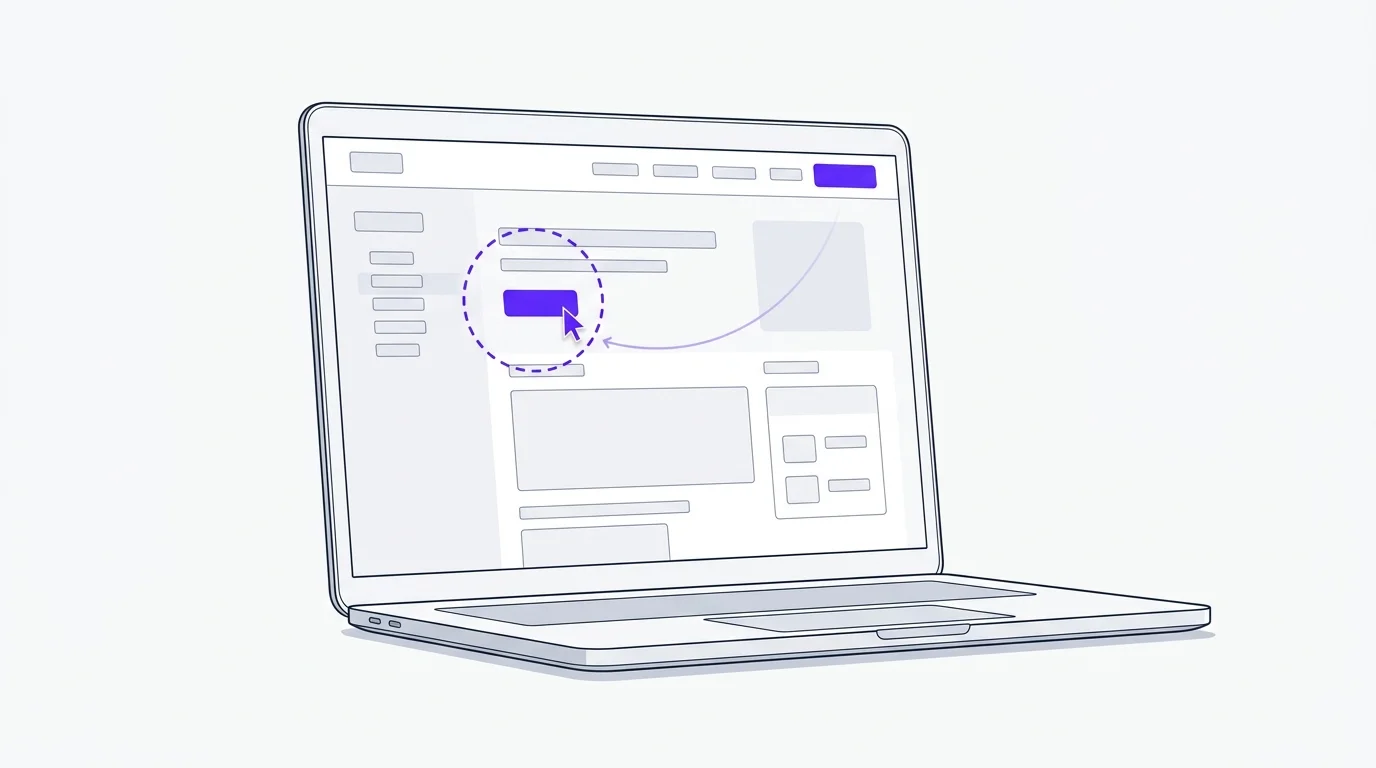
When there is no native Connector and no MCP, this is how Claude reaches your tools. The example from the training: ask Claude to open Spotify and add an album to your library. Spotify does not have a native Connector. Claude uses Computer Use to navigate the app the way you would.
The honest assessment. Today, Computer Use is slow, brittle, and best for jobs where no other tier works. The model can hesitate, misclick, or hallucinate a button that is not there. Anthropic recommends running it in a sandboxed environment, keeping a human in the loop for anything destructive, and never handing it credentials for accounts that matter.
Watch this tier. The capability ladder is climbing fast. Within a year, Computer Use will be the most powerful of the four Connector tiers. For now, treat it as a power tool, not the daily driver.
Computer Use is Claude using your laptop, the way you would. The permission considerations are handled in the permissions section below.
MCP: Model Context Protocol
MCP (Model Context Protocol) is the universal connector. It is the way Claude reaches tools that do not have a native Connector yet.
MCP: the universal connector for everything else
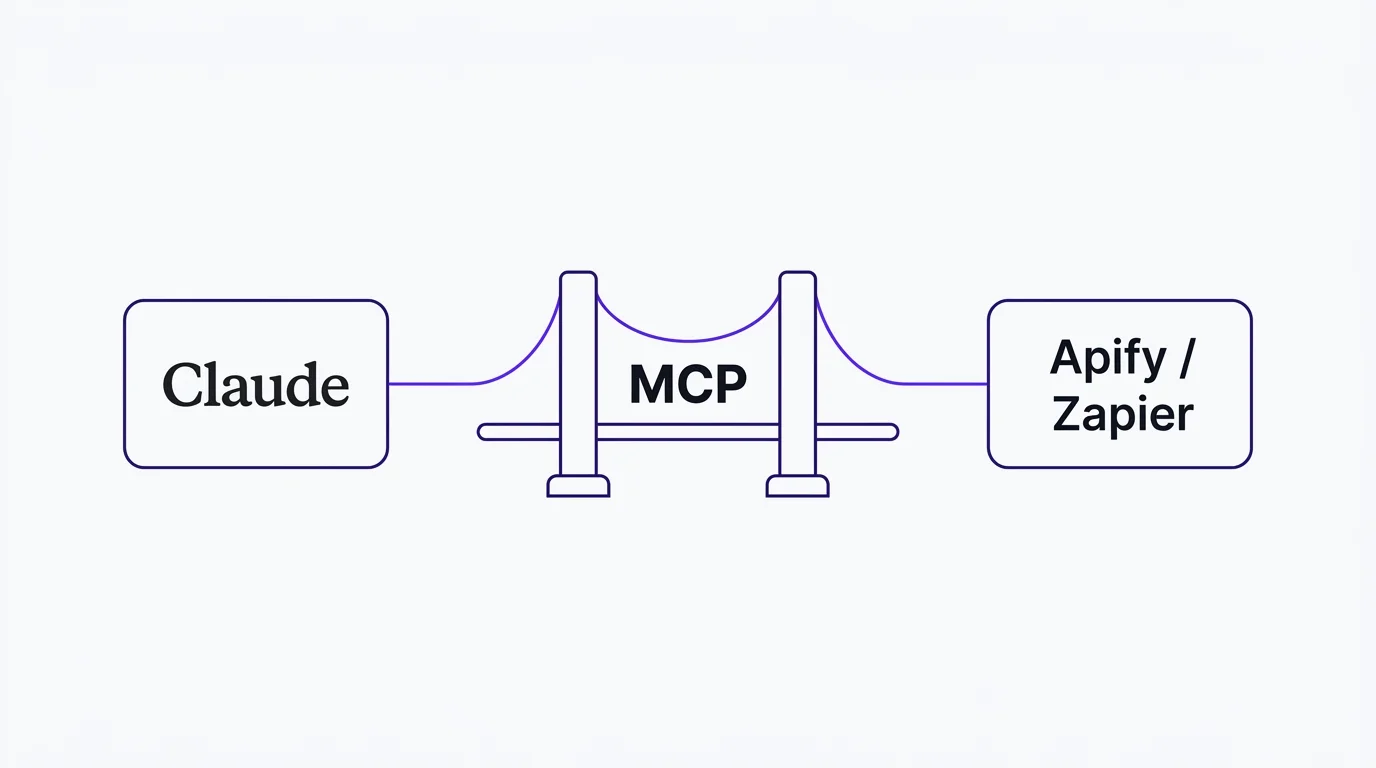
The install at a high level. Ask Claude to find the MCP URL for the tool you want. Paste it in the Connectors area. Authorize. The tool's surface becomes available to Claude.
Concrete examples. Klaviyo, Stripe, HubSpot, Linear, and Intercom all expose MCPs. The two heavyweights worth knowing by name are Apify (web scraping at scale) and Zapier (mcp.zapier.com, which exposes thousands of apps through a single MCP endpoint). If your tool does not have a native Connector and you do not want to wait for one, the MCP path is the answer.
One tradeoff to know. MCPs load every tool they expose into the context window, which burns tokens. A heavy MCP with hundreds of available actions can crowd a 200,000-token window faster than you expect. Pick the MCPs you actually use. Disable the rest.
Most marketers reach for MCP when a tool they need is not on the native list. Apify and Zapier alone open thousands of those tools.
Permissions: Read vs Write
Every Connector asks for permissions. Read means Claude can look. Write means Claude can change.
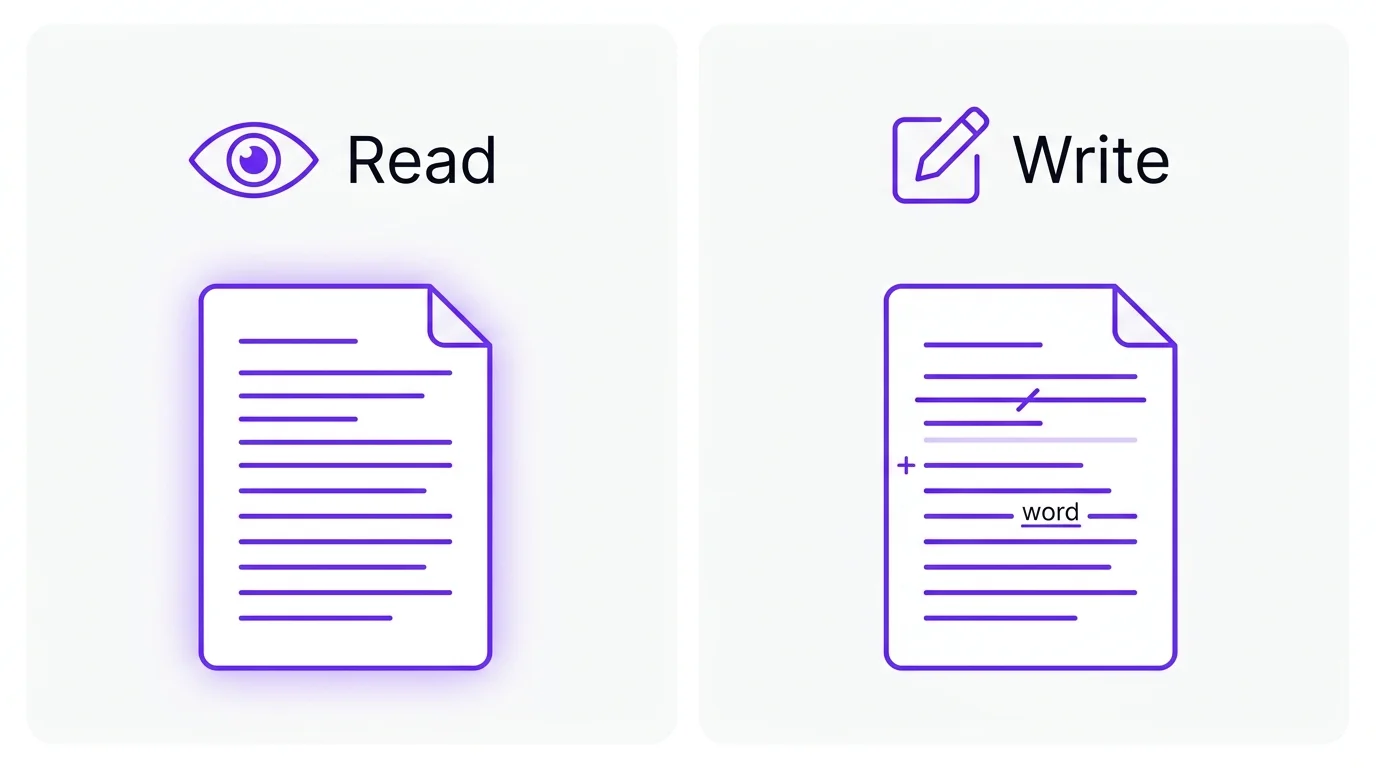
The practical examples.
A read-only Google Drive Connector lets Claude reference your brand voice file but cannot edit it. Safe for browsing, research, and using your own files as ground truth.
A write-enabled Notion Connector lets Claude create pages, edit existing ones, and delete drafts. Useful when Claude is doing real production work for you. Riskier if you have not set up the workspace carefully.
The shape of the trust model. Anything inside a connected tool could be fair game once you grant write access. The arrows go both ways. Claude can pull data out, and Claude can push changes in.
The recommendation that works. Start every new Connector with read-only. Grant write only when you have watched Claude work for a while and you are sure the Skill driving it is sharp. You can always upgrade the permission later. Downgrading after a mishap is more annoying.
Write permissions turn Claude from a researcher into an editor. Worth doing. Worth doing carefully.
You can also browse Connector reviews in the library for hands-on context on the ones theCLICK uses in production.
The Four Tiers, Side by Side
Use this when you are deciding which Connector to install for a given job.
| Native | Desktop Extension | Computer Use | MCP | |
|---|---|---|---|---|
| Ease of setup | One click | One install per machine | Beta, with sandbox | Paste a URL, authorize |
| Scope | One cloud app per connector | Your local file system | Anything you can see on screen | One tool surface per MCP |
| Write access | Per-permission, fine-grained | Yes, if granted | Yes (be careful) | Per-tool, varies |
| Example apps | Notion, Drive, Slack, Gmail | Your Cowork workspace folder | Spotify, any GUI app | Apify, Zapier, Klaviyo, Stripe |
| When to use | First three Connectors you install | Reading and writing your own files | When no other tier works | When you outgrow Native and you know why |
Most operators will spend the first month in Native and Desktop. They will discover MCP when a specific tool they care about does not have a native option. They will discover Computer Use when a tool does not even have an MCP. The ladder climbs in that order for almost everyone.
What You Have When This Phase Is Done
A short list of authorized Connectors against the apps you already use. The desktop extension giving Claude reach into your local workspace. A working sense of which tier to pick for a given job, and a read-only-first habit for every new Connector. The framework is now connected to the rest of your stack, which means the workflows in the library can actually run on your business, not just describe themselves.
Plug Claude into Your Stack
Stop copy-pasting between Claude and your other apps. Connectors are what turn a smart chatbot into a working teammate.
Or browse Connector reviews in the library. Or get the free Quick Start.